> ## Documentation Index
> Fetch the complete documentation index at: https://docs.zuddl.com/llms.txt
> Use this file to discover all available pages before exploring further.
# Webinars
> Discover how to quickly set up your virtual event.
## 1. Add webinar details
Give a concise title, choose the date, and select a time zone are the first steps in creating a webinar.
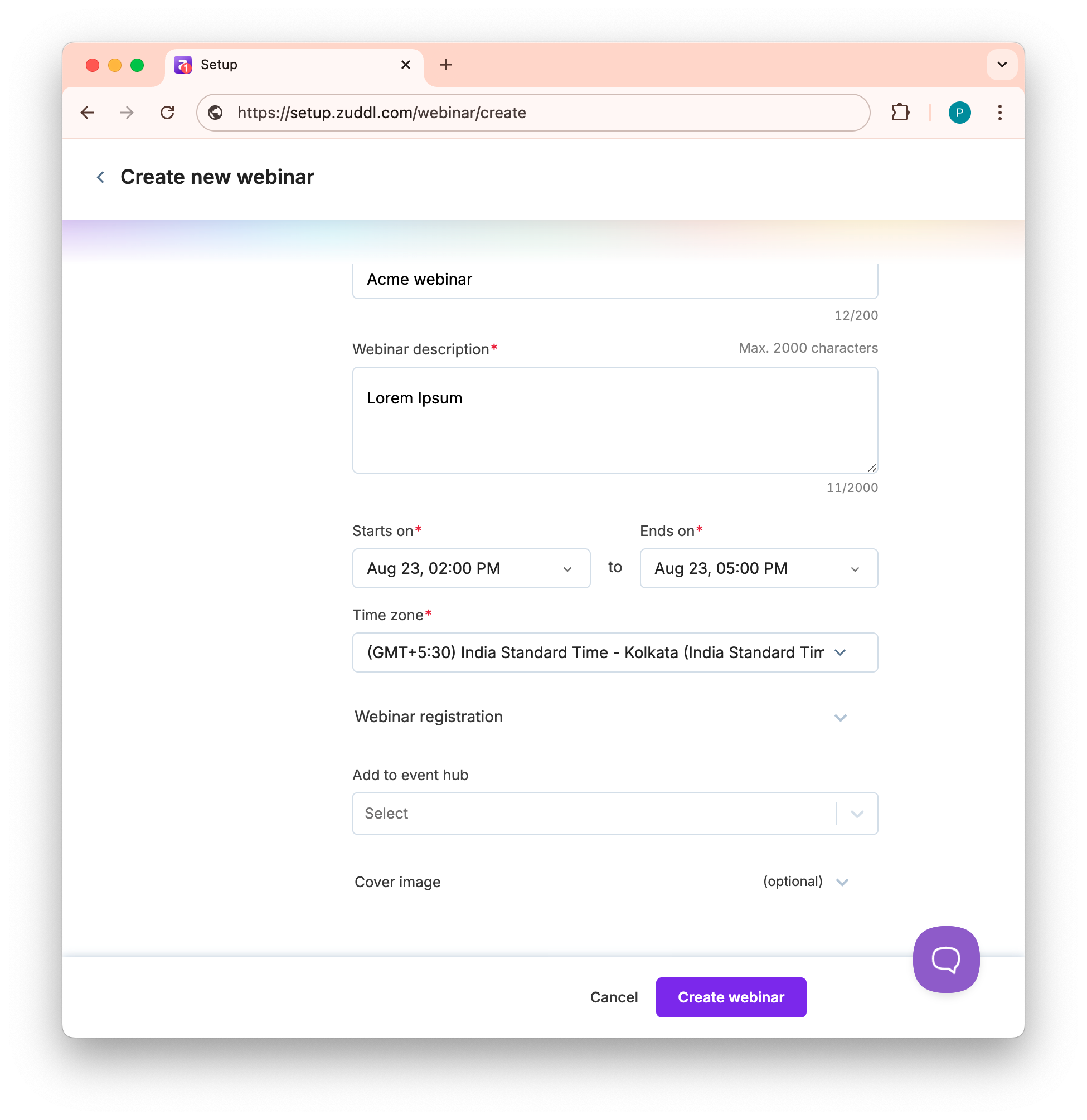 [*Learn how to add webinar details.*](https://zuddl-knowledge-base.help.usepylon.com/collections/6987503036-getting-started)
## 2. Brand your webinar
After creation, customize branding of your webinar, like uploading a background image, setting primary color, and dropping in a webinar logo. Consistent visuals reassure registrants that they are on your property, and the same palette is propagated to confirmation emails.
[*Learn how to add webinar details.*](https://zuddl-knowledge-base.help.usepylon.com/collections/6987503036-getting-started)
## 2. Brand your webinar
After creation, customize branding of your webinar, like uploading a background image, setting primary color, and dropping in a webinar logo. Consistent visuals reassure registrants that they are on your property, and the same palette is propagated to confirmation emails.
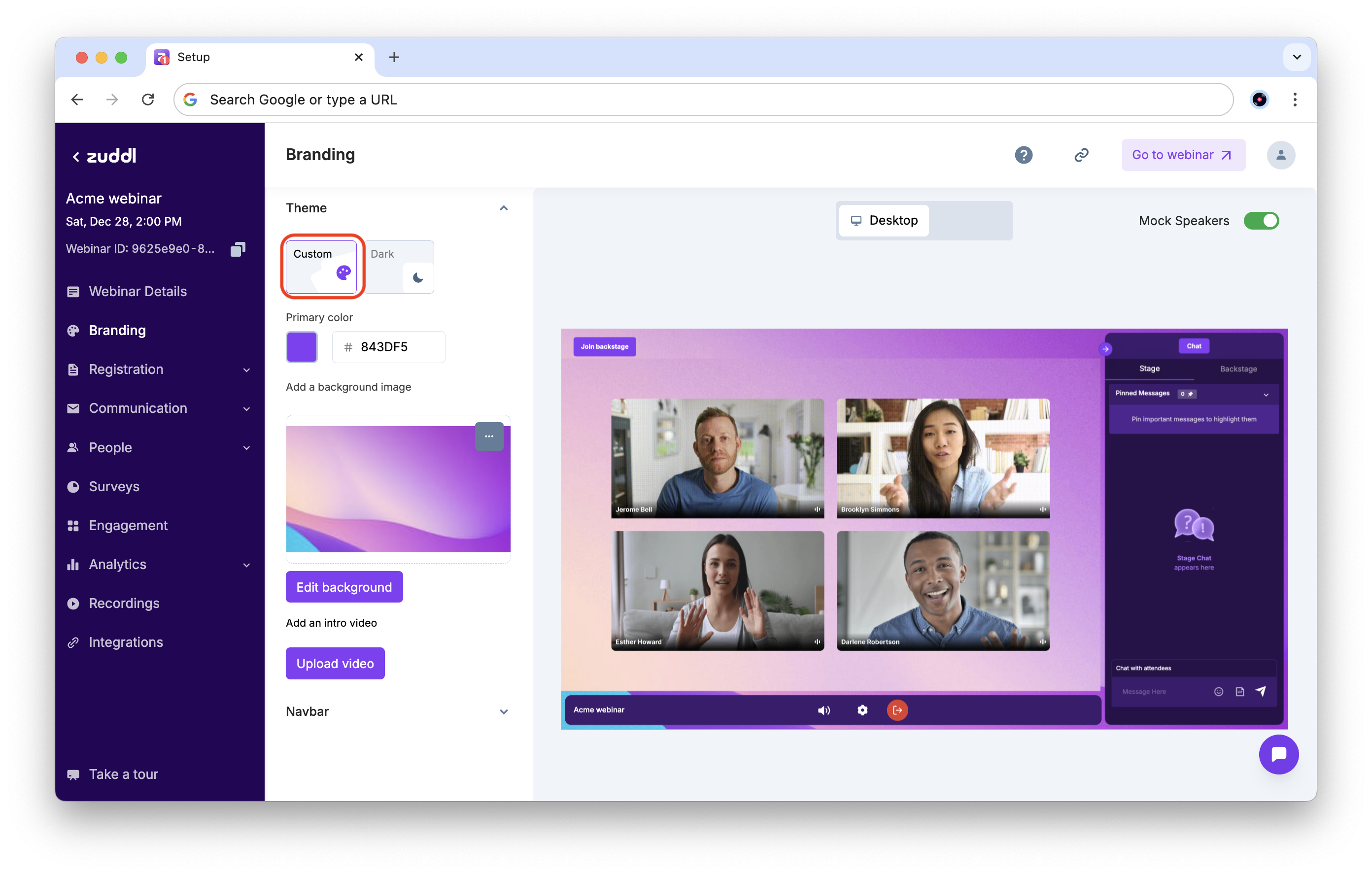 [*Learn the basics of branding your webinar.*](https://zuddl-knowledge-base.help.usepylon.com/articles/1233760632-how-to-brand-your-zuddl-webinar)
## 3. Set up registration
Using the registration page editor, drop in a hero image, set a theme colour, and drag speaker cards into place. Now, navigate to **Registration › Form** to add or edit form fields and activate conditional logic. Keep the form clean — include only the necessary information: name, email, and a qualifying question. If you have a registration page already created, you can embed the form to your page.
[*Learn the basics of branding your webinar.*](https://zuddl-knowledge-base.help.usepylon.com/articles/1233760632-how-to-brand-your-zuddl-webinar)
## 3. Set up registration
Using the registration page editor, drop in a hero image, set a theme colour, and drag speaker cards into place. Now, navigate to **Registration › Form** to add or edit form fields and activate conditional logic. Keep the form clean — include only the necessary information: name, email, and a qualifying question. If you have a registration page already created, you can embed the form to your page.
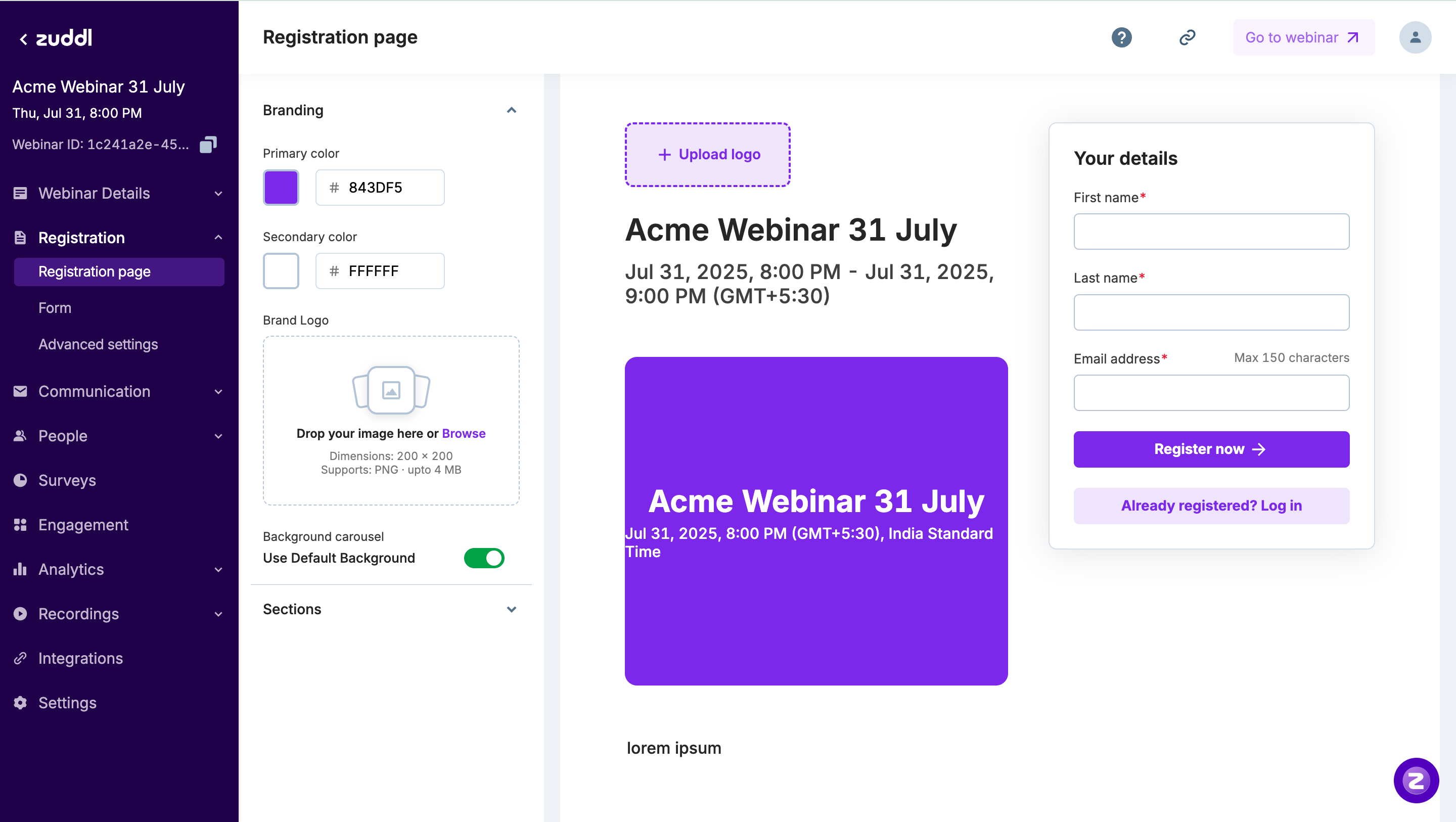 [Learn how to set up your registration page](https://zuddl-knowledge-base.help.usepylon.com/collections/1810057877-registrations-1).
***
## 4. Enable engagement tools
Under **Engagement,** toggle on the features that match your format, for example:
* to collect up-vote driven questions, adding moderator review if the topic is sensitive.
* When you want live guest cameos; presenters can approve or deny each request in one click.
Conduct interesting polls to make sessions more fun and engaging.
Allow participants to chat with each other.
Convert the incoming audio into a desired language.
Add captions to the incoming audio.
Add survey questions to assess effectiveness of an event and gather valuable insights.
[Refer to the engagement setup guide to view all options.](https://zuddl-knowledge-base.help.usepylon.com/collections/3759640594-engagement-1)
***
## 5. Send speaker invites
Invite speakers to your webinar. Zuddl provides a backstage magic link so speakers can rehearse in a private green room. You can enable magic link for speakers to directly enter the event/backstage— no accounts or passwords required.
[Learn how to set up your registration page](https://zuddl-knowledge-base.help.usepylon.com/collections/1810057877-registrations-1).
***
## 4. Enable engagement tools
Under **Engagement,** toggle on the features that match your format, for example:
* to collect up-vote driven questions, adding moderator review if the topic is sensitive.
* When you want live guest cameos; presenters can approve or deny each request in one click.
Conduct interesting polls to make sessions more fun and engaging.
Allow participants to chat with each other.
Convert the incoming audio into a desired language.
Add captions to the incoming audio.
Add survey questions to assess effectiveness of an event and gather valuable insights.
[Refer to the engagement setup guide to view all options.](https://zuddl-knowledge-base.help.usepylon.com/collections/3759640594-engagement-1)
***
## 5. Send speaker invites
Invite speakers to your webinar. Zuddl provides a backstage magic link so speakers can rehearse in a private green room. You can enable magic link for speakers to directly enter the event/backstage— no accounts or passwords required.
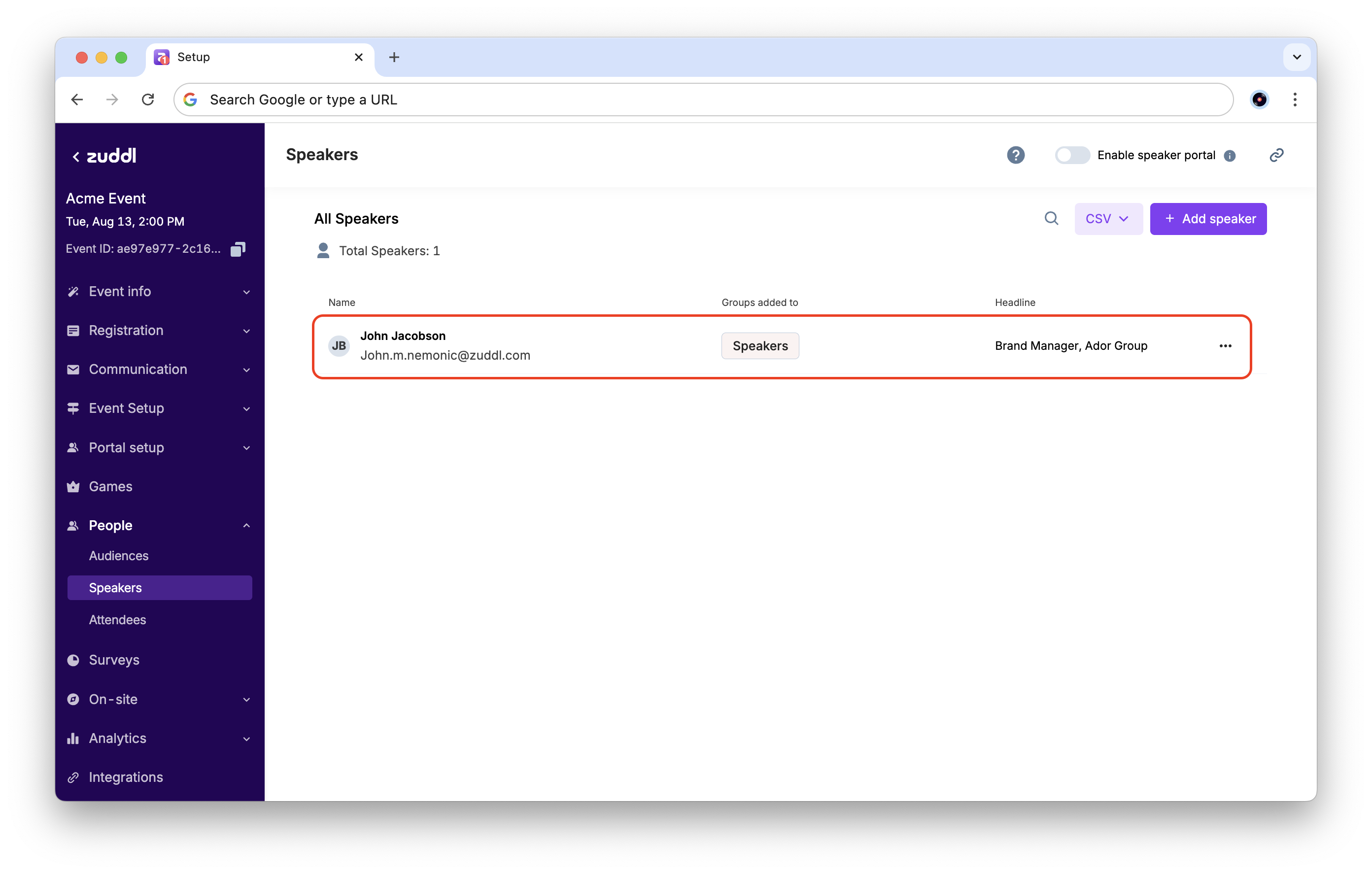 [Learn how to invite speakers to your webinar.](https://zuddl-knowledge-base.help.usepylon.com/articles/5073547178-how-to-invite-speakers-to-a-zuddl-webinar)
## 6. Automate attendee emails
Under **Communications**, emails like registration confirmation, reminders, and post-event emails are pre-defined. Edit the copy and branding, then adjust the schedule relative to the webinar start time so that shifts are propagated everywhere.
[Learn how to invite speakers to your webinar.](https://zuddl-knowledge-base.help.usepylon.com/articles/5073547178-how-to-invite-speakers-to-a-zuddl-webinar)
## 6. Automate attendee emails
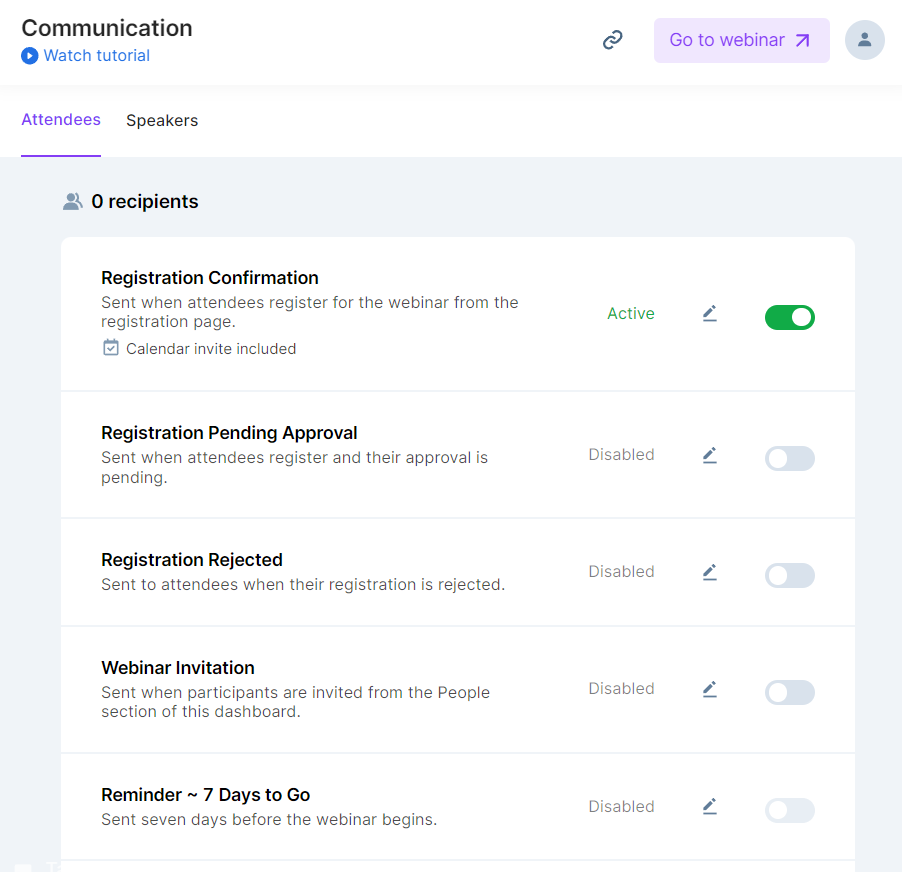
Under **Communications**, emails like registration confirmation, reminders, and post-event emails are pre-defined. Edit the copy and branding, then adjust the schedule relative to the webinar start time so that shifts are propagated everywhere.
 [Learn how to set up email communication.](https://zuddl-knowledge-base.help.usepylon.com/articles/9478504317-how-to-setup-attendee-emails-for-a-zuddl-webinar)
***
## 7. Do a dry-run in studio & go-live
Speakers receive the event invitation with a magic link a magic-link invitation. Clicking Go Backstage lands them in Zuddl Studio, where they test the camera, mic, and slides before they hit Broadcast. A countdown timer starts once you stream, giving everyone a constant reference without back-channel chatter.\
\
[Learn how to manage your Studio](https://zuddl-knowledge-base.help.usepylon.com/collections/9144828226-manage-your-studio).
***
## 8. Publish recording on-demand
When you stop the stream, Zuddl auto-records and saves the file. Visit Recordings, click Publish, and the recording is accessible appears on your registration page for anyone who missed the live slot. Publishing from the same dashboard avoids downloading huge files, re-uploading to third-party video hosts, and updating broken links.
[Learn how to set up email communication.](https://zuddl-knowledge-base.help.usepylon.com/articles/9478504317-how-to-setup-attendee-emails-for-a-zuddl-webinar)
***
## 7. Do a dry-run in studio & go-live
Speakers receive the event invitation with a magic link a magic-link invitation. Clicking Go Backstage lands them in Zuddl Studio, where they test the camera, mic, and slides before they hit Broadcast. A countdown timer starts once you stream, giving everyone a constant reference without back-channel chatter.\
\
[Learn how to manage your Studio](https://zuddl-knowledge-base.help.usepylon.com/collections/9144828226-manage-your-studio).
***
## 8. Publish recording on-demand
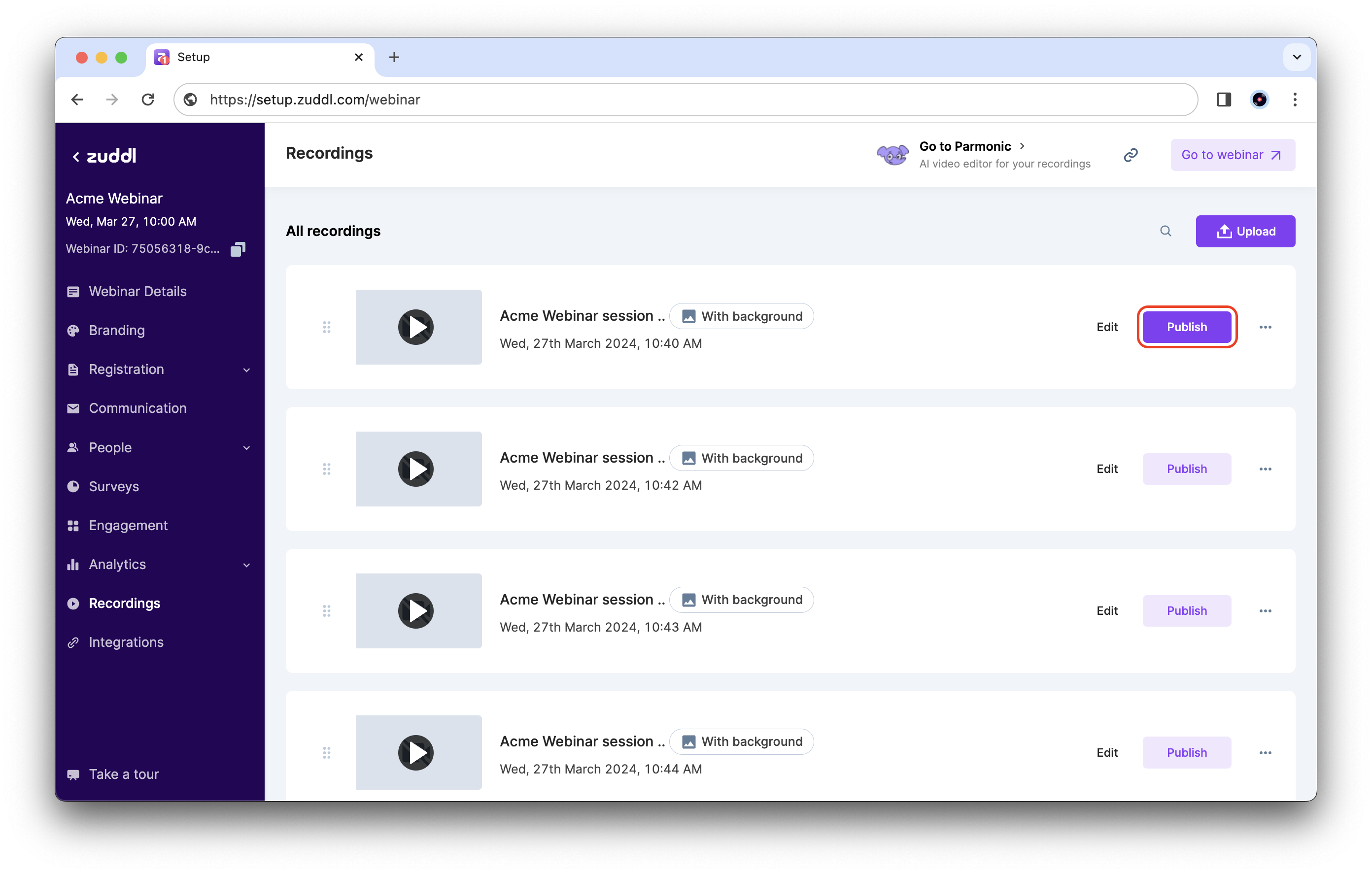
When you stop the stream, Zuddl auto-records and saves the file. Visit Recordings, click Publish, and the recording is accessible appears on your registration page for anyone who missed the live slot. Publishing from the same dashboard avoids downloading huge files, re-uploading to third-party video hosts, and updating broken links.
 [Learn how to publish recordings on demand.](https://zuddl-knowledge-base.help.usepylon.com/articles/7187032415-how-to-publish-webinar-recordings-on-demand)
## 9. Connect your CRM
Open *Integrations* and authorize Salesforce, HubSpot, or Marketo and map form fields. From that moment, every registration, attendance flag, and poll response streams straight into your pipeline tools.
[Refer to the integration guides.](https://zuddl-knowledge-base.help.usepylon.com/collections/4943854498-integrations-4)
[Learn how to publish recordings on demand.](https://zuddl-knowledge-base.help.usepylon.com/articles/7187032415-how-to-publish-webinar-recordings-on-demand)
## 9. Connect your CRM
Open *Integrations* and authorize Salesforce, HubSpot, or Marketo and map form fields. From that moment, every registration, attendance flag, and poll response streams straight into your pipeline tools.
[Refer to the integration guides.](https://zuddl-knowledge-base.help.usepylon.com/collections/4943854498-integrations-4)