> ## Documentation Index
> Fetch the complete documentation index at: https://docs.zuddl.com/llms.txt
> Use this file to discover all available pages before exploring further.
# Approvals
> Learn how to use approvals in your event registration
**Supported event types**\
Virtual ✅ | In-person ✅ | Webinar ✅ | Field event ✅ | Third-party
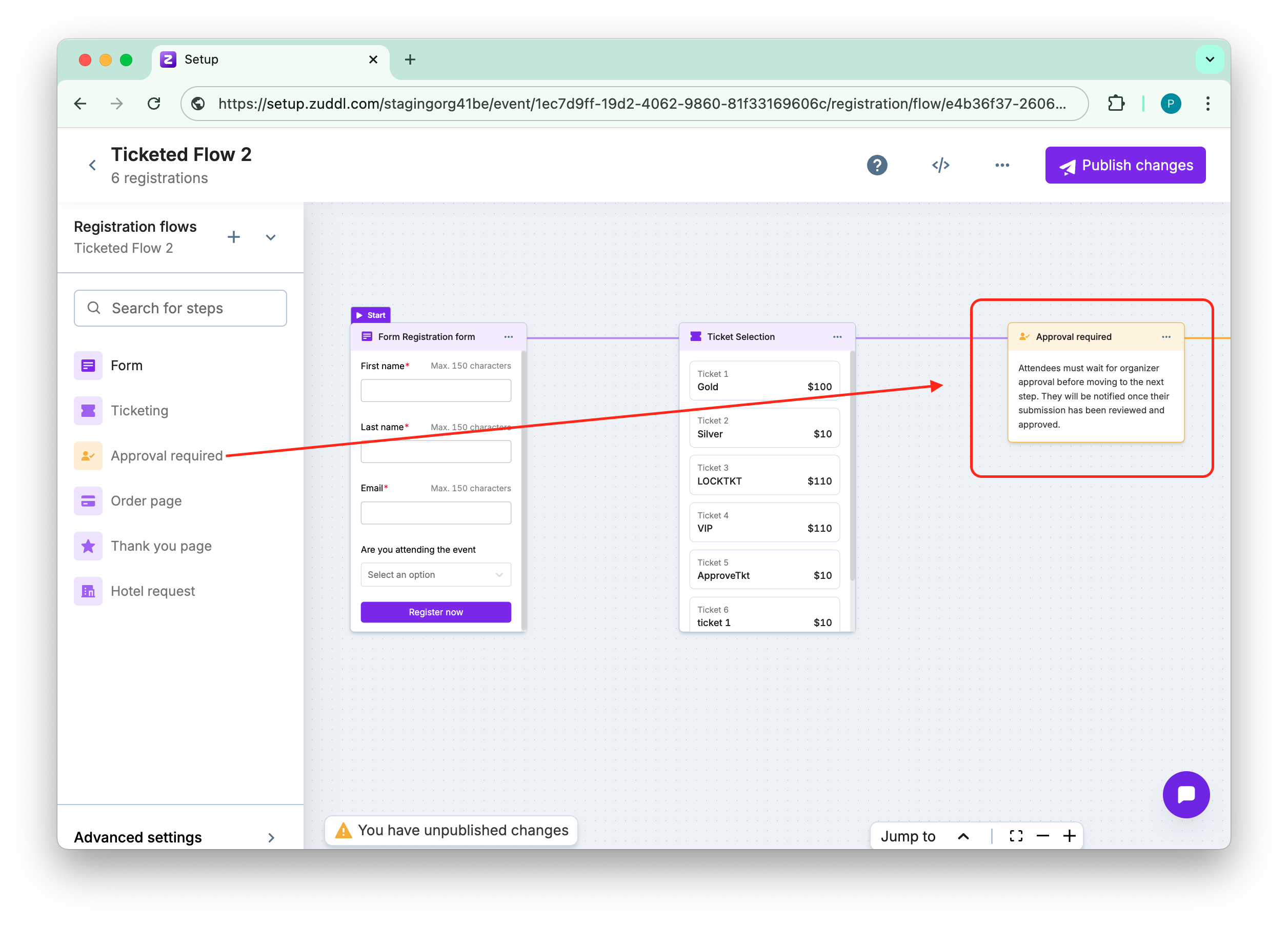
Turning on Attendee Registration Approval lets organizers screen every request before it converts to a confirmed seat, preventing unqualified sign-ups, enforcing capacity caps, and aligning attendance with sales-team priorities. Instead of reviewing separate spreadsheets, staff review a queue inside the dashboard and act with one click.
 ***
## Working the queue
When you approve to promote the registrant, Zuddl flips the status to Approved, issues the confirmation email with a calendar block, and, for paid events, unlocks the payment step. When you decline to register, the Registration Rejected email triggers, and the seat returns to inventory. Bulk actions approve or reject all entries that match a filter—useful when you import an invite list and trust its entries.
***
## Email automation
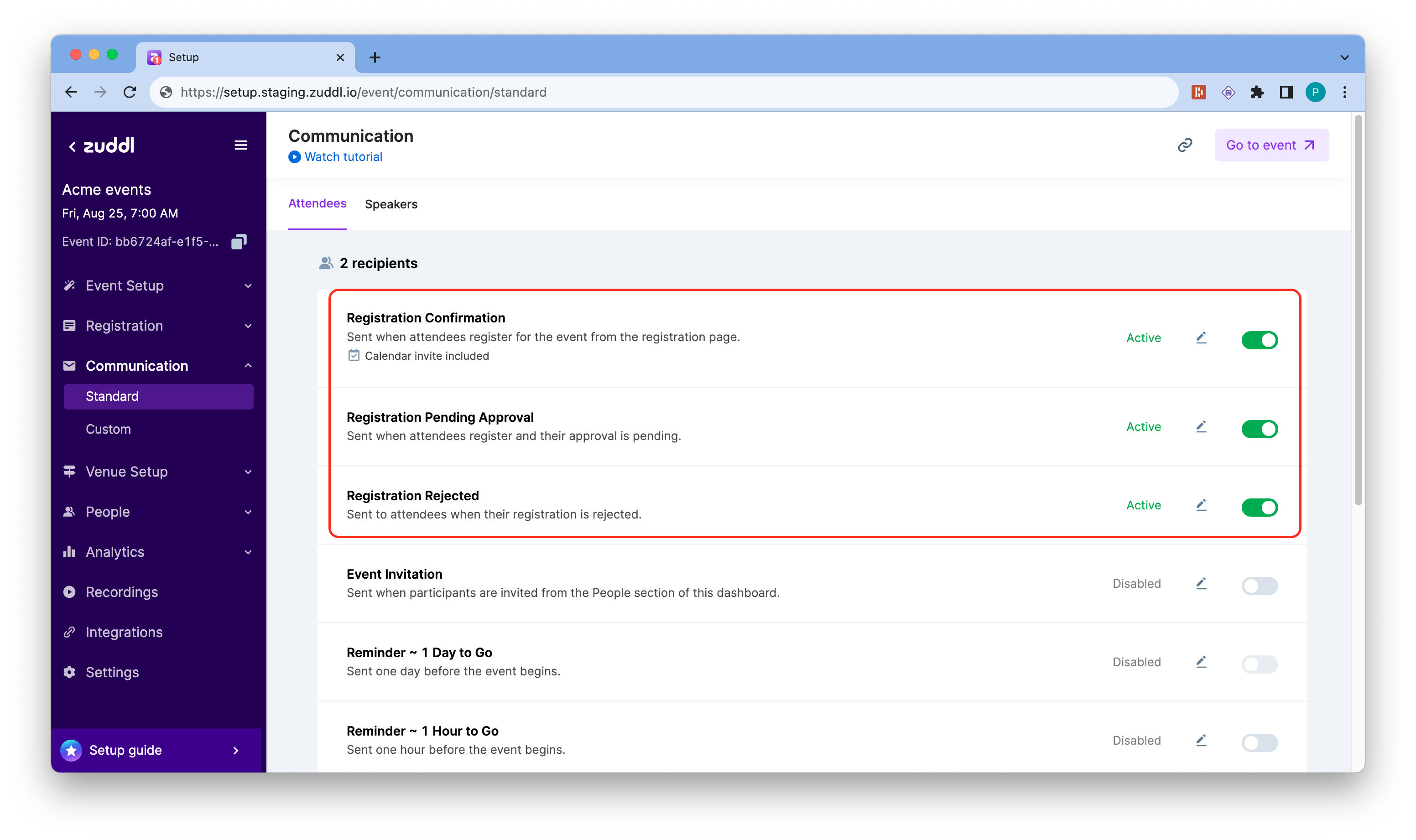
Five status-based templates keep applicants informed without manually reaching out:
* **Pending Approval** — sent on submission.
* **Approved** — sent the moment you click Approve.
* **Rejected** — notifies declined applicants.
* **Approved but Not Registered** — reminds invitees who were approved but never finished payment or post-approval forms.
* **Abandoned** — captures sessions that time-out before submission.
Approval gates pair neatly with **Registration Capacity**. When you set a hard cap, you can choose *New registrations need approval* once the limit is reached; the system then holds overflow requests in *Pending* so you can cherry-pick high-value guests.
***
## Working the queue
When you approve to promote the registrant, Zuddl flips the status to Approved, issues the confirmation email with a calendar block, and, for paid events, unlocks the payment step. When you decline to register, the Registration Rejected email triggers, and the seat returns to inventory. Bulk actions approve or reject all entries that match a filter—useful when you import an invite list and trust its entries.
***
## Email automation
Five status-based templates keep applicants informed without manually reaching out:
* **Pending Approval** — sent on submission.
* **Approved** — sent the moment you click Approve.
* **Rejected** — notifies declined applicants.
* **Approved but Not Registered** — reminds invitees who were approved but never finished payment or post-approval forms.
* **Abandoned** — captures sessions that time-out before submission.
Approval gates pair neatly with **Registration Capacity**. When you set a hard cap, you can choose *New registrations need approval* once the limit is reached; the system then holds overflow requests in *Pending* so you can cherry-pick high-value guests.